Tuesday, January 16, 2024

Find Hyper-V Host

 When lost between multiple Hyper Hosts and Images you can always find the host of a hyper-V image using the registry. 

The following powershell command can be used to read the registry 

Get-ItemProperty -Path "HKLM:\SOFTWARE\Microsoft\Virtual Machine\Guest\Parameters"  | Select-Object HostName

Sunday, January 14, 2024

SQL remove invisible characters

You will need a combination of 3 functions 

1. PATINDEX: PATINDEX is used to find a position in a string where a specified character or pattern exists. In our chase we have specified all characters from ascii value 0 to 31, 127 and 255. 

2. SUBSTRING: Once the PATINDEX function return the location where one of the invisible characters is found, substring function extracts that 1 length string to isolate the invisible character. 

3. REPLACE: This function then replaces all occurrences of the invisible character found and replaces it with a zero length string.

select REPLACE([Text], SUBSTRING([Text], PATINDEX('%[' + CHAR(0)+ '-' +CHAR(31) + CHAR(127)+ '-' +CHAR(255)+']%'  , [Text] COLLATE Latin1_General_100_BIN2 ), 1 ), ' ') [Text] 
from DataExtract

Please note that casting the column to be replaced with binary collation is required else some of the characters are not parsed.  


As the above statement only replaces all occurences of the the first invisible character found. It might be more meaningful to extract this data into a table and update the text column replacement until there are no more rows found with invisible characters 


update DataExtract
set Text = REPLACE([Text], SUBSTRING([Text], PATINDEX('%[' + CHAR(0)+ '-' +CHAR(31) + CHAR(127)+ '-' +CHAR(255)+']%'  , [Text] COLLATE Latin1_General_100_BIN2 ), 1 ), ' ')
where  PATINDEX('%[' + CHAR(0)+ '-' +CHAR(31) + CHAR(127)+ '-' +CHAR(255)+']%'  , [Text] COLLATE Latin1_General_100_BIN2 ) > 0


Sometimes a value starting with a double quote '"' might cause an issue when one tries to paste the data in Excel, as excel tries to interpret a start and end of text column using double quote as a delimiter. So if you are copying and pasting values in excel make sure that the column does not start with a double quote else best is to replace such occurrences:

Update DataExtract
set  [Text] = SUBSTRING( [Text], 2, 10000 )
where left( [Text], 1 ) = '"'


Tuesday, September 05, 2023

Fetch the Enum labels in SQL Statements

 When dealing with writing SQL Statements the Enum values and their corresponding names force us to write switch case statements which is time consuming. A shortcut for this method is as follows. 

There is already a table in the D365 Database called SRSANALYSISENUMS this table is used to store the D365 labels for use in the Datawarehouse cubes. By default all the tables that are part of any perspectives are populated in this table. However, for some of our enum we can explicitly populate this table and use the same in SQL. 

Create the following job to populate any given enum into the SRSANALYSISENUMS table. 


    public static void main(Args _args)
    {
        SRSAnalysisEnums analysisEnums;
        DictEnum currentEnum;
        str currentEnumName;
        int valueCount;
        str enumItemName;
        int enumItemValue;
        RecordInsertList records;
        Dialog dialog;
        DialogField  dfEnumName;

        dialog = new Dialog("Please enter the enum name");
        dfEnumName = dialog.addField(extendedTypeStr("Name"));
        dfEnumName.label("Enum name");
        if (dialog.run())
        {
            records = new RecordInsertList(tablenum(SRSAnalysisEnums));
         
            currentEnumName = dfEnumName.value();
            currentEnum = new DictEnum(enumName2Id(currentEnumName));
            if(currentEnum == null)
            {
                throw error(strfmt("Enum with name %1 does not exists.",currentEnumName));
            }
            valueCount = currentEnum.values();
            ttsbegin;
            delete_from analysisEnums where analysisEnums.EnumName == currentEnum.name();
            for(int j = 0; j < valueCount; j++)
            {
                enumItemName = currentEnum.index2Symbol(j);
                enumItemValue = currentEnum.index2Value(j);
             
                select firstfast forupdate EnumName, EnumItemName, EnumItemValue
                from analysisEnums where analysisEnums.EnumName == currentEnum.name() && analysisEnums.EnumItemValue == enumItemValue;

                if (analysisEnums)
                {
                    if (analysisEnums.EnumItemName != enumItemName)
                    {
                        analysisEnums.EnumItemName  = enumItemName;
                        analysisEnums.update();
                    }
                }
                else
                {
                    analysisEnums.EnumName      = currentEnum.name();
                    analysisEnums.EnumItemName  = enumItemName;
                    analysisEnums.EnumItemValue = enumItemValue;
                 
                    records.add(analysisEnums);
                }
            }
            records.insertDatabase();
            ttscommit;

            Info("Completed");
        }
    }


Once this job is created and compiled we can run this class for each Enum that we want to be populated. To run the class from the url use the following syntax: 


https://ds-dev-7658e683048e57b40devaos.cloudax.dynamics.com/?cmp=ds01&mi=SysClassRunner&Cls=SRSAnalysisEnumsGenerator

In the above URL the servername and cmp parameter should be replaced to match your environment.

Friday, September 01, 2023

Split CSV values as columns

To split a CSV value in a given column into different individual columns use the following trick. 

Firstly, let us look at the different functions that are involved in this process. 

1. Table Value Constructor: The Value clause can be used to create a table out of values. This clause is used in the insert statement however its interesting to note that it can also be used in joins to create a derived table with fixed values. 

E.g.: In the examples below a derived table Source has been created using literal values. 

select Source.NewReasonType, Source.NewName
from (VALUES ('Recommendation','Other'), ('Review', 'Marketing'), ('Internet', 'Promotion')) 
     AS Source (NewName, NewReasonType)

2. Apply operator: Just like the join operator we have another operator apply which has been introduced in SQL and this operator indicates to the SQL Engine that the clause has to be evaluated for each row

3. JSON_VALUE: This function is used to extract a scalar value from a Json string. The function accepts 2 paramters 1. Json expression and 2. subscript of the node to refer.

E.g.


DECLARE @data NVARCHAR(MAX);
SET @data = N'{  
     "info":{    
       "ID":1,  
     "Name":"Akshat",
       "address":{    
         "City":"Gurgaon",  
         "Country":"India"  
       },  
       "Favorite_Subject":["English", "Science"]  
    },  
    "type":"student"  
 }';  
SELECT JSON_VALUE(@data, '$.info.Name') AS 'Name', 
       JSON_VALUE(@data, '$.info.Favorite_Subject[1]') AS 'Favorite Subject';


E.g: If Display value contains the dimension values separated by a pipe (|) the below statement will break it into individual dimension columns


 select
JSON_VALUE(JS,'$[0]') Dim1, JSON_VALUE(JS,'$[1]') Dim2, JSON_VALUE(JS,'$[2]') Dim3, JSON_VALUE(JS,'$[3]') Dim4
from DIMENSIONSETENTITY T17
Cross Apply (values ('["' + replace( T17.DISPLAYVALUE ,'|','","')+'"]') ) B(JS)
 

Tuesday, April 25, 2023

SSRS Report CreatedTransactionId

CreatedTransactionId, is a read-only field maintained by AX.  

For a table that has its CreatedTransactionId property set to Yes, when an insert occurs, AX automatically sets the CreatedTransactionId value (to the current value of appl.curTransactionId()).  

The CreatedTransactionId is tied to the outermost transaction only – that is, if there are nested transactions, they do not get their own CreatedTransactionId, but instead share the same one as the master (outermost) transaction.   Only after the ttsLevel has dropped back to 0 will a new CreatedTransactionId get generated.


Sunday, March 12, 2023

SQL Enable Maintenance Mode

Certain tasks like enabling of a new accounts Structure requires the SQL database to be in maintenance mode. This is done using the LCS portal for UAT and PROD environments. However, if the same has to be done on the DEV machine then the database has to be manually put into maintenance mode. 

To enable maintenance mode in the SQL server database of the DEV Machine using the following script. 

update SQLSYSTEMVARIABLES SET VALUE = 1 where PARM = 'CONFIGURATIONMODE'

Tuesday, January 03, 2023

Skip the upgrade checklist

 SysCheckList_Update::finalizeMinorUpgrade();

Saturday, June 18, 2022

Find SID for a user

 Use the following command to find the SID for a given user 

wmic useraccount where name="USER" get sid


Tuesday, February 22, 2022

SSRS Report Company does not exist error

 Recently has this issue where when a report was executed an error was logged. 


The issue identified was with the contract class. The report i created was a RDP report however the contract class that i created was extending SrsReportRdlDataContract.

When a contract class is being created for a RDP Report then the contract class need not extend any base report and can simply implement the required interfaces like SysOperationValidatable. 

Item or Product or Product Master

Item and Product are terms that have a similar meaning and as both terms are used in the D365 system, it is confusing and important to understand the glossary in its true terms. 

The term that D365 associates for an Inventory entity is Product. 

When a product is being designed at an abstract level it is called Product Master. This serves as a template or model for creation of the actual products. We have three important aspects to consider when thinking about a product master.

  1. Product Dimension: Will the product have additional variants on its inception as a product.
  2. Storage Dimension: What level of storage details would be maintained for the product when it is created. This could be a combination of Location, Warehouse, Pallet etc 
  3. Tracking Dimension: Will the product be tracked for Batch and Serial information during its movement across the different transactions.  
With all the above attributes decided and attached to the product master; an Item is created which is a physical concept and will have transactions created against itself. 

Product also has a classification called Product Type which could either be Item or Service which are self-explanatory.  

Products are released to legal entities where they are relevant and released Items are created in the entities where they are authorized. 

Thursday, December 23, 2021

SSRS format date in User

When the date needs to be formatted in SSRS as per the user settings then use the following 

       
=Microsoft.Dynamics.Framework.Reports.DataMethodUtility.ConvertUtcToAxUserTimeZoneForUser(Parameters!AX_CompanyName.Value, Parameters!AX_UserContext.Value, System.DateTime.UtcNow, "d", Parameters!AX_RenderingCulture.Value)
 

When the time needs to be formatted in SSRS as per the user settings then use the following 

       
=Microsoft.Dynamics.Framework.Reports.DataMethodUtility.ConvertUtcToAxUserTimeZoneForUser(Parameters!AX_CompanyName.Value, Parameters!AX_UserContext.Value, System.DateTime.UtcNow, "d", Parameters!AX_RenderingCulture.Value)
 

Wednesday, December 22, 2021

Visual Studio Crash on edit

 Visual studio can sometimes behave nasty and can keep crashing on each edit that is done. In such cases one of the tricks that has helped is to disable the word wrap in the editor. 

To disable the word wrap goto:

Tools->Options->Text Editor-> All languages 

Disable word wrap as shown below 


Tuesday, December 21, 2021

Parameter does not exist in report

 The following error occurs when a parameter value is saved in the report xml and is not on the design of the report. 


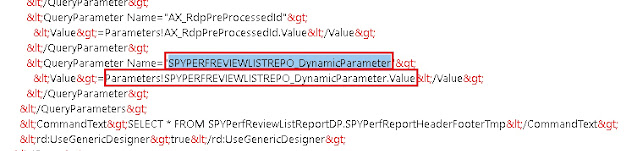
If we observe the design of the report we can notice that the parameter "SPYPERFREVIEWLISTREPO_DynamicParameter" which is reported missing does not exist on the design. Which means that the design did not sync with the XML and this parameter is still being referred with an incorrect parameter name. 


To fix this error we open the report in XML layout and replace the parameter name with "SPYPERFREVIEWDETAILSR_DynamicParameter" in this case as this is the actual name of the parameter. 


Report deployment error "Sequence contains no matching element"

 Sometimes when we change the source query of the datasets and redeploy the report we can get the error "Sequence contains no matching element"

It turned out that during the dataset restore a parameter was added. It was added at the Parameters node at the report level and the node Parameters, however if one of the parameters is deleted then this error will occur. 

So, this error occurs if a parameter name is being referred to at the dataset level and the same parameter does not exist at the report level. 

To resolve this error ensure that each parameter at the dataset level is mapped to a parameter at the report level. Also use dynamic parameters only for one dataset and not for multiple.

If the error still exists then try to recollect the parameters that you have lately modified and check if a reference for them still exists in the XML file and try to manually resolve them and map them to the newly updated parameters. Search QueryParameter in the XML and check the parameters individually for each dataset and report to identify any incorrect value and accordingly correct or remove the value from XML.

Sometimes this error can also occur is a report was deployed with Dynamic Parameter and then was changed to have Dynamic Parameter to false. In such cases make sure that you enable the dynamic parameter for the first dataset and then try to deploy again. 


SSRS Report Errors

 There are situations when runtime errors are generated by report datasets. Viewing these errors provides us information on how to debug the error.


The log for the same can be found under windows event viewer at the location Application and Services Logs ->  Microsoft -> Dynamics -> 


Each of the above nodes can be checked for the potential error. Click on the details node to get the details of the error 


Thursday, December 16, 2021

SSRS New Report creation

The report development is based on the MVC framework pattern. As part of this framewoek there are 2 main classes required for report development. Firstly, the contract class to store the necessary data for report generation. Secondly, we need the data provider class that is used to encapsulate the business logic to process for generation of the report. 

Following are the steps and necessary constructs/ data attributes required to create a report from the scratch

  1. Start by creating a contract class which would have the necessary fields to capture data on the report request stage. These data fields are then later used in the DataProvider class to filter our the required data. 
       

[DataContractAttribute]

class SPYSalaryHistoryContract implements SysOperationValidatable
{
    FromDate    fromDate;
    ToDate      toDate;

    [DataMemberAttribute("FromDate"),
    SysOperationLabelAttribute(literalStr(@SPY1278)),
    SysOperationHelpTextAttribute(literalStr(@SPY1278))]
    public FromDate parmFromDate(FromDate _fromDate = fromDate)
    {
        fromDate = _fromDate;
        return fromDate;
    }

    [DataMemberAttribute("ToDate"),
    SysOperationLabelAttribute(literalStr(@SPY1279)),
    SysOperationHelpTextAttribute(literalStr(@SPY1279))]
    public FromDate parmToDate(FromDate _toDate = toDate)
    {
        toDate = _toDate;
        return toDate;
    }

    public boolean validate()
    {
        boolean ret = true;

        if(fromDate > toDate)
            ret = checkFailed('@SPY:DateValidationMsg');
    
        return ret;
    }

}	
2. Create the DataProvider class. 

The data provider class should extend from the SrsReportDataProviderPreProcess method. When extended from this class the data provider will provide the necessary structure to populate the data table before the report is triggered. 

[
    SRSReportParameterAttribute(classStr(SPYSalaryHistoryContract)),
    SRSReportQueryAttribute(queryStr(HcmWorkerLookup))
]

class SPYSalaryHistoryDP extends SrsReportDataProviderPreProcess
{
    SPYPromotionSalaryTableTmp    promotionSalaryTableTmp;

    [SRSReportDataSetAttribute(tableStr(SPYPromotionSalaryTableTmp))]
    public SPYPromotionSalaryTableTmp getSPYPromotionDetailsTmp()
    {
        select promotionSalaryTableTmp;
        return promotionSalaryTableTmp;
    }

    public void setTableConnections()
    {
        promotionSalaryTableTmp.setConnection(this.parmUserConnection());
    }

    public void processReport()
    {
        Query                   query;
        QueryRun                queryRun;
        FromDate                fromDate, toDate;

        SPYSalaryHistoryContract    contract = this.parmDataContract() as SPYSalaryHistoryContract;

        fromDate = contract.parmFromDate();
        toDate =   contract.parmToDate();

        
        query = this.parmQuery();
        queryRun = new QueryRun(query);

        while(queryRun.next())
        {
        }

    }

} 
Once the above constructs are created a new SSRS report can be created. To start the designing we will have to begin by adding DataSource which should be  Report Data Provider. When can then specify a Query to link the DataSource to a table in the DP class. 

Two important attributes are used in RDP classes are:
  1. SRSReportParameterAttribute:  defines the data contract class that will be used by this report to prompt for parameter values. If the RDP class contains any parameters this define this attribute at the beginning of the class.
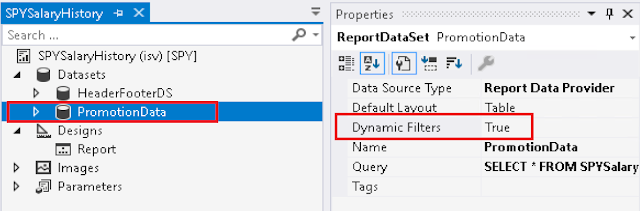
  2. SRSReportQueryAttribute:  specifies which AOT query will be used in this report. If the RDP class uses an AOT query to process data, define this attribute at the beginning of the class. However, for this attribute to work the Dynamic Filter should be set to true on the DataSet node of the report as shown below

The number of defined parameters is not equal to the number of cell definitions in the parameter panel.

 When a report is duplicated the name of the report changes and this results in the change of the parameter names that are used in the reports. 

When we try to deploy a report where the parameters in the parameter section of the report design, does not match with that of the ones defined in the xml then we get this error. 

To rectify this error 

1. Open the report design and notice the parameters in the parameter panel.


 2. Open the report using an XML editor. Right click the report and choose open with 


3. Search for ReportParametersLayout section in the XML file 


As we can notice from the above the the XML is not in Sync with the design. We need to ensure that the XML is same as the design, hence we need to add a new parameter in this section called AFZSPYLEAVEAPPLICATIO_DynamicParameter which we can see in the GUI panel (step 1)

Insert a new parameter as follows in the XML and save the file. When pasting a new parameter please ensure to increment the columnIndex 


Deploy the report and it should be successfully deployed. 

Sunday, June 13, 2021

SSRS Contract class parameters not refreshed

When we design the report the parameters are copied from the contract class and the details for them are stored in the report parameters. 

In case that we later change the parameters in the contract class and the same are not refreshed in the SSRS Report parameters, there is a possibility that we will continue to see the parameters even though they are deleted from the contract class. This is due to the fact that the parameters are being fetched from the SSRS report. 

To get rid of the issue, delete all the parameters in the report design, and restore the dataset again. When the dataset is refreshed the required parameters are automatically added to the report. 

X++ check for null value

X++ was designed in a way that the complications around null value are not required and hence X++ manages a default value always to ensure that null exceptions do not occur. The null can however occur when there is a view defined with outer joins. 

The obvious option it to handle this using SQL and a computed column in views. However in my case the columns were far too many to created a computed column for each and hence i wanted to handle null in the x++ code itself. I wanted to check if the value of a field in the view in null and accordingly take an action to either copy or ignore it. 

the easiest way to do it, let x++ evaluate it on its own by placing it in round brackets. If the field is not null it would evaluate to true and in case of null it would evaluate to false.  

 employeeNewJoinedTmp.Grade   = ( workerDetails.Grade) ?  "" : workerDetails.Grade;

Saturday, June 12, 2021

Sequence contains no matching element at System.Linq.Enumerable.Single[TSource](IEnumerable`1 source, Func`2 predicate)

This error occurs when there is a parameter at the subnode (Dataset) level, which is  supposed to be mapped to report parameter; however, it does not map to one. 

This can happen when we selected to have the Dynamics Filters = True for the dataset (which would create corresponding elements at the report level) and later deleted them from the report level, thus leaving the dataset level filters as orphan and without a matching filter. 


In the screen above we can see that the HeaderFooter dataset refers to a parameter called HeaderFooter_parmBankAccountId and this does not exist at the report level. We should map this to a valid report parameter if it exists, or we can set the dynamic filters to false and then true again so that these filters are created again if missing.