Showing posts with label Report. Show all posts

Wednesday, June 18, 2025

Add new design to Print Management

 Some of the document prints in the Dynamics Finance and Operations application have been configured as a part of the Print management framework. 

The print management framework makes it possible that the design of a document print is configurable. However, this also restricts the configuration to be picked from the set of reports that are configured to be a part of the framework. 

Hence, if a new design is being prepared for a document that needs to be configured in the document print management framework, then the following steps should be followed to register the new layout in the system. 

Find the PrintMgmtDocType class and create a subscriber to the getDefaultReportFormatDelegate method. 


class AFZPrintMgmtDocType_EventHandler
{
    [SubscribesTo(classstr(PrintMgmtDocType), delegatestr(PrintMgmtDocType, getDefaultReportFormatDelegate))]
    public static void getDefaultReportFormatDelegate(PrintMgmtDocumentType _docType, EventHandlerResult _result)
    {
        switch (_docType)
        {
            case PrintMgmtDocumentType::SalesFreeTextInvoice:
                _result.result(ssrsReportStr(AFZFreeTextInvoice, Report));
                break;

            case PrintMgmtDocumentType::SalesOrderInvoice:
                _result.result(ssrsReportStr(AFZSalesInvoice, Report));
                break;
        }
    }

}

There is a bug in the base system when a new DocType is registered in PrintManagement, the latest report registered becomes the default report. 

The default report is printed when we use the Original Preview option in the journal prints. 


If we wish to have a different report as the default report we can change the same from a backend table PrintMgmtReportFormat. 

This table has a row for each DocumentType that has been registered in the system and for each documentType there would be only one row that marked as System. If we want to change the default report then we have to switch on the system column for that report layout. 


Wednesday, March 06, 2024

Extra parameters on Report

 I have created a class with 2 parameters however when the Dialog box is rendered there are 4 parameters displayed as shown below


So basically when the parameters are rendered these are done from the SSRS report. When we open the SSRS report parameters we can notice that these additional parameters are added to the report and these are the same parameters which are repeating. 

To solve the issue, we need to delete the unwanted parameters from the parameters list and redeploy the report. 


Tuesday, April 25, 2023

SSRS Report CreatedTransactionId

CreatedTransactionId, is a read-only field maintained by AX.  

For a table that has its CreatedTransactionId property set to Yes, when an insert occurs, AX automatically sets the CreatedTransactionId value (to the current value of appl.curTransactionId()).  

The CreatedTransactionId is tied to the outermost transaction only – that is, if there are nested transactions, they do not get their own CreatedTransactionId, but instead share the same one as the master (outermost) transaction.   Only after the ttsLevel has dropped back to 0 will a new CreatedTransactionId get generated.


Tuesday, December 21, 2021

Parameter does not exist in report

 The following error occurs when a parameter value is saved in the report xml and is not on the design of the report. 


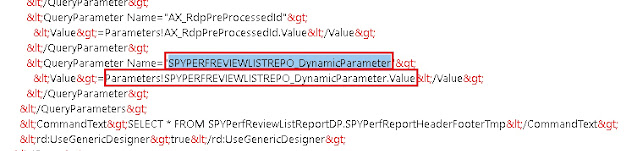
If we observe the design of the report we can notice that the parameter "SPYPERFREVIEWLISTREPO_DynamicParameter" which is reported missing does not exist on the design. Which means that the design did not sync with the XML and this parameter is still being referred with an incorrect parameter name. 


To fix this error we open the report in XML layout and replace the parameter name with "SPYPERFREVIEWDETAILSR_DynamicParameter" in this case as this is the actual name of the parameter. 


SSRS Report Errors

 There are situations when runtime errors are generated by report datasets. Viewing these errors provides us information on how to debug the error.


The log for the same can be found under windows event viewer at the location Application and Services Logs ->  Microsoft -> Dynamics -> 


Each of the above nodes can be checked for the potential error. Click on the details node to get the details of the error 


Thursday, December 16, 2021

SSRS New Report creation

The report development is based on the MVC framework pattern. As part of this framewoek there are 2 main classes required for report development. Firstly, the contract class to store the necessary data for report generation. Secondly, we need the data provider class that is used to encapsulate the business logic to process for generation of the report. 

Following are the steps and necessary constructs/ data attributes required to create a report from the scratch

  1. Start by creating a contract class which would have the necessary fields to capture data on the report request stage. These data fields are then later used in the DataProvider class to filter our the required data. 
       

[DataContractAttribute]

class SPYSalaryHistoryContract implements SysOperationValidatable
{
    FromDate    fromDate;
    ToDate      toDate;

    [DataMemberAttribute("FromDate"),
    SysOperationLabelAttribute(literalStr(@SPY1278)),
    SysOperationHelpTextAttribute(literalStr(@SPY1278))]
    public FromDate parmFromDate(FromDate _fromDate = fromDate)
    {
        fromDate = _fromDate;
        return fromDate;
    }

    [DataMemberAttribute("ToDate"),
    SysOperationLabelAttribute(literalStr(@SPY1279)),
    SysOperationHelpTextAttribute(literalStr(@SPY1279))]
    public FromDate parmToDate(FromDate _toDate = toDate)
    {
        toDate = _toDate;
        return toDate;
    }

    public boolean validate()
    {
        boolean ret = true;

        if(fromDate > toDate)
            ret = checkFailed('@SPY:DateValidationMsg');
    
        return ret;
    }

}	
2. Create the DataProvider class. 

The data provider class should extend from the SrsReportDataProviderPreProcess method. When extended from this class the data provider will provide the necessary structure to populate the data table before the report is triggered. 

[
    SRSReportParameterAttribute(classStr(SPYSalaryHistoryContract)),
    SRSReportQueryAttribute(queryStr(HcmWorkerLookup))
]

class SPYSalaryHistoryDP extends SrsReportDataProviderPreProcess
{
    SPYPromotionSalaryTableTmp    promotionSalaryTableTmp;

    [SRSReportDataSetAttribute(tableStr(SPYPromotionSalaryTableTmp))]
    public SPYPromotionSalaryTableTmp getSPYPromotionDetailsTmp()
    {
        select promotionSalaryTableTmp;
        return promotionSalaryTableTmp;
    }

    public void setTableConnections()
    {
        promotionSalaryTableTmp.setConnection(this.parmUserConnection());
    }

    public void processReport()
    {
        Query                   query;
        QueryRun                queryRun;
        FromDate                fromDate, toDate;

        SPYSalaryHistoryContract    contract = this.parmDataContract() as SPYSalaryHistoryContract;

        fromDate = contract.parmFromDate();
        toDate =   contract.parmToDate();

        
        query = this.parmQuery();
        queryRun = new QueryRun(query);

        while(queryRun.next())
        {
        }

    }

} 
Once the above constructs are created a new SSRS report can be created. To start the designing we will have to begin by adding DataSource which should be  Report Data Provider. When can then specify a Query to link the DataSource to a table in the DP class. 

Two important attributes are used in RDP classes are:
  1. SRSReportParameterAttribute:  defines the data contract class that will be used by this report to prompt for parameter values. If the RDP class contains any parameters this define this attribute at the beginning of the class.
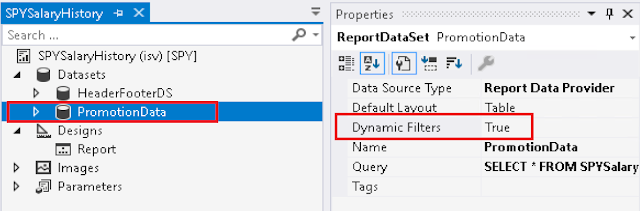
  2. SRSReportQueryAttribute:  specifies which AOT query will be used in this report. If the RDP class uses an AOT query to process data, define this attribute at the beginning of the class. However, for this attribute to work the Dynamic Filter should be set to true on the DataSet node of the report as shown below