Showing posts with label D365. Show all posts

Wednesday, June 18, 2025

Add new design to Print Management

 Some of the document prints in the Dynamics Finance and Operations application have been configured as a part of the Print management framework. 

The print management framework makes it possible that the design of a document print is configurable. However, this also restricts the configuration to be picked from the set of reports that are configured to be a part of the framework. 

Hence, if a new design is being prepared for a document that needs to be configured in the document print management framework, then the following steps should be followed to register the new layout in the system. 

Find the PrintMgmtDocType class and create a subscriber to the getDefaultReportFormatDelegate method. 


class AFZPrintMgmtDocType_EventHandler
{
    [SubscribesTo(classstr(PrintMgmtDocType), delegatestr(PrintMgmtDocType, getDefaultReportFormatDelegate))]
    public static void getDefaultReportFormatDelegate(PrintMgmtDocumentType _docType, EventHandlerResult _result)
    {
        switch (_docType)
        {
            case PrintMgmtDocumentType::SalesFreeTextInvoice:
                _result.result(ssrsReportStr(AFZFreeTextInvoice, Report));
                break;

            case PrintMgmtDocumentType::SalesOrderInvoice:
                _result.result(ssrsReportStr(AFZSalesInvoice, Report));
                break;
        }
    }

}

There is a bug in the base system when a new DocType is registered in PrintManagement, the latest report registered becomes the default report. 

The default report is printed when we use the Original Preview option in the journal prints. 


If we wish to have a different report as the default report we can change the same from a backend table PrintMgmtReportFormat. 

This table has a row for each DocumentType that has been registered in the system and for each documentType there would be only one row that marked as System. If we want to change the default report then we have to switch on the system column for that report layout. 


Tuesday, September 17, 2024

SQL View for Dimension

 The following SQL view can be used to extract dimension information using SQL 


1. DefaultDimensionView: for default dimension each dimension value is listed as a separate row. Hence, we  might need multiple joins for one each dimension to get values in a columnar format. 

2. DimensionAttributeValueCombination: For Ledger dimension. Each dimension would exist as a column in this view. 

Sunday, March 12, 2023

SQL Enable Maintenance Mode

Certain tasks like enabling of a new accounts Structure requires the SQL database to be in maintenance mode. This is done using the LCS portal for UAT and PROD environments. However, if the same has to be done on the DEV machine then the database has to be manually put into maintenance mode. 

To enable maintenance mode in the SQL server database of the DEV Machine using the following script. 

update SQLSYSTEMVARIABLES SET VALUE = 1 where PARM = 'CONFIGURATIONMODE'

Thursday, December 23, 2021

SSRS format date in User

When the date needs to be formatted in SSRS as per the user settings then use the following 

       
=Microsoft.Dynamics.Framework.Reports.DataMethodUtility.ConvertUtcToAxUserTimeZoneForUser(Parameters!AX_CompanyName.Value, Parameters!AX_UserContext.Value, System.DateTime.UtcNow, "d", Parameters!AX_RenderingCulture.Value)
 

When the time needs to be formatted in SSRS as per the user settings then use the following 

       
=Microsoft.Dynamics.Framework.Reports.DataMethodUtility.ConvertUtcToAxUserTimeZoneForUser(Parameters!AX_CompanyName.Value, Parameters!AX_UserContext.Value, System.DateTime.UtcNow, "d", Parameters!AX_RenderingCulture.Value)
 

Wednesday, December 22, 2021

Visual Studio Crash on edit

 Visual studio can sometimes behave nasty and can keep crashing on each edit that is done. In such cases one of the tricks that has helped is to disable the word wrap in the editor. 

To disable the word wrap goto:

Tools->Options->Text Editor-> All languages 

Disable word wrap as shown below 


Tuesday, December 21, 2021

Parameter does not exist in report

 The following error occurs when a parameter value is saved in the report xml and is not on the design of the report. 


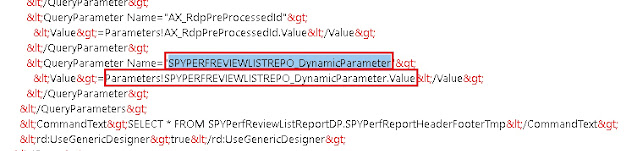
If we observe the design of the report we can notice that the parameter "SPYPERFREVIEWLISTREPO_DynamicParameter" which is reported missing does not exist on the design. Which means that the design did not sync with the XML and this parameter is still being referred with an incorrect parameter name. 


To fix this error we open the report in XML layout and replace the parameter name with "SPYPERFREVIEWDETAILSR_DynamicParameter" in this case as this is the actual name of the parameter. 


Report deployment error "Sequence contains no matching element"

 Sometimes when we change the source query of the datasets and redeploy the report we can get the error "Sequence contains no matching element"

It turned out that during the dataset restore a parameter was added. It was added at the Parameters node at the report level and the node Parameters, however if one of the parameters is deleted then this error will occur. 

So, this error occurs if a parameter name is being referred to at the dataset level and the same parameter does not exist at the report level. 

To resolve this error ensure that each parameter at the dataset level is mapped to a parameter at the report level. Also use dynamic parameters only for one dataset and not for multiple.

If the error still exists then try to recollect the parameters that you have lately modified and check if a reference for them still exists in the XML file and try to manually resolve them and map them to the newly updated parameters. Search QueryParameter in the XML and check the parameters individually for each dataset and report to identify any incorrect value and accordingly correct or remove the value from XML.

Sometimes this error can also occur is a report was deployed with Dynamic Parameter and then was changed to have Dynamic Parameter to false. In such cases make sure that you enable the dynamic parameter for the first dataset and then try to deploy again. 


SSRS Report Errors

 There are situations when runtime errors are generated by report datasets. Viewing these errors provides us information on how to debug the error.


The log for the same can be found under windows event viewer at the location Application and Services Logs ->  Microsoft -> Dynamics -> 


Each of the above nodes can be checked for the potential error. Click on the details node to get the details of the error 


Thursday, December 16, 2021

SSRS New Report creation

The report development is based on the MVC framework pattern. As part of this framewoek there are 2 main classes required for report development. Firstly, the contract class to store the necessary data for report generation. Secondly, we need the data provider class that is used to encapsulate the business logic to process for generation of the report. 

Following are the steps and necessary constructs/ data attributes required to create a report from the scratch

  1. Start by creating a contract class which would have the necessary fields to capture data on the report request stage. These data fields are then later used in the DataProvider class to filter our the required data. 
       

[DataContractAttribute]

class SPYSalaryHistoryContract implements SysOperationValidatable
{
    FromDate    fromDate;
    ToDate      toDate;

    [DataMemberAttribute("FromDate"),
    SysOperationLabelAttribute(literalStr(@SPY1278)),
    SysOperationHelpTextAttribute(literalStr(@SPY1278))]
    public FromDate parmFromDate(FromDate _fromDate = fromDate)
    {
        fromDate = _fromDate;
        return fromDate;
    }

    [DataMemberAttribute("ToDate"),
    SysOperationLabelAttribute(literalStr(@SPY1279)),
    SysOperationHelpTextAttribute(literalStr(@SPY1279))]
    public FromDate parmToDate(FromDate _toDate = toDate)
    {
        toDate = _toDate;
        return toDate;
    }

    public boolean validate()
    {
        boolean ret = true;

        if(fromDate > toDate)
            ret = checkFailed('@SPY:DateValidationMsg');
    
        return ret;
    }

}	
2. Create the DataProvider class. 

The data provider class should extend from the SrsReportDataProviderPreProcess method. When extended from this class the data provider will provide the necessary structure to populate the data table before the report is triggered. 

[
    SRSReportParameterAttribute(classStr(SPYSalaryHistoryContract)),
    SRSReportQueryAttribute(queryStr(HcmWorkerLookup))
]

class SPYSalaryHistoryDP extends SrsReportDataProviderPreProcess
{
    SPYPromotionSalaryTableTmp    promotionSalaryTableTmp;

    [SRSReportDataSetAttribute(tableStr(SPYPromotionSalaryTableTmp))]
    public SPYPromotionSalaryTableTmp getSPYPromotionDetailsTmp()
    {
        select promotionSalaryTableTmp;
        return promotionSalaryTableTmp;
    }

    public void setTableConnections()
    {
        promotionSalaryTableTmp.setConnection(this.parmUserConnection());
    }

    public void processReport()
    {
        Query                   query;
        QueryRun                queryRun;
        FromDate                fromDate, toDate;

        SPYSalaryHistoryContract    contract = this.parmDataContract() as SPYSalaryHistoryContract;

        fromDate = contract.parmFromDate();
        toDate =   contract.parmToDate();

        
        query = this.parmQuery();
        queryRun = new QueryRun(query);

        while(queryRun.next())
        {
        }

    }

} 
Once the above constructs are created a new SSRS report can be created. To start the designing we will have to begin by adding DataSource which should be  Report Data Provider. When can then specify a Query to link the DataSource to a table in the DP class. 

Two important attributes are used in RDP classes are:
  1. SRSReportParameterAttribute:  defines the data contract class that will be used by this report to prompt for parameter values. If the RDP class contains any parameters this define this attribute at the beginning of the class.
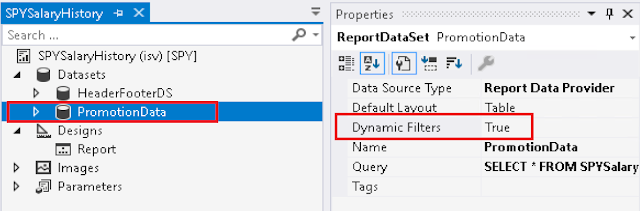
  2. SRSReportQueryAttribute:  specifies which AOT query will be used in this report. If the RDP class uses an AOT query to process data, define this attribute at the beginning of the class. However, for this attribute to work the Dynamic Filter should be set to true on the DataSet node of the report as shown below

The number of defined parameters is not equal to the number of cell definitions in the parameter panel.

 When a report is duplicated the name of the report changes and this results in the change of the parameter names that are used in the reports. 

When we try to deploy a report where the parameters in the parameter section of the report design, does not match with that of the ones defined in the xml then we get this error. 

To rectify this error 

1. Open the report design and notice the parameters in the parameter panel.


 2. Open the report using an XML editor. Right click the report and choose open with 


3. Search for ReportParametersLayout section in the XML file 


As we can notice from the above the the XML is not in Sync with the design. We need to ensure that the XML is same as the design, hence we need to add a new parameter in this section called AFZSPYLEAVEAPPLICATIO_DynamicParameter which we can see in the GUI panel (step 1)

Insert a new parameter as follows in the XML and save the file. When pasting a new parameter please ensure to increment the columnIndex 


Deploy the report and it should be successfully deployed. 

Wednesday, April 21, 2021

Format date as per user setting

 In SSRS when dates need to be formatted as per the user preferences and time zone use the below expressions: 

       
Microsoft.Dynamics.Framework.Reports.DataMethodUtility.ConvertUtcToAxUserTimeZoneForUser(Parameters!AX_CompanyName.Value, Parameters!AX_UserContext.Value, System.DateTime.UtcNow, "d", Parameters!AX_RenderingCulture.Value)
 

In the above expression System.DateTime.UtcNow should be replaced with the actual data.

Monday, January 29, 2018

Power BI D365 Integration

Every external application that needs an access to an Azure resource should be assigned necessary permissions. The registration process for Applications takes care of this.

To view the app registrations follow the following path: -
Goto Services and find App Registrations


Click on App Registrations and set the filter to All Apps
Then search of the name of the application as used when the app was registered on the PowerBI portal (in this case 365-hcpm-demo Power BI Integration )


Once you click on the app you will be able to see the details


At this location one should be able to view and manage most of the properties of the application.

Note: The secret key is only visible once when it is being created and thereafter hidden so if at all you have forgotten your key please delete the existing one and create a new one.

Name, Object id and other properties are visible using the properties tab page.

Reply urls tab page is used to alter the redirection page.