Once a certain functionality has been developed using User Controls for EP, the next step is to deploy this functionality on the EP portal. Following are the steps that are used to deploy an SSRS report, using a parameters forms (User control) on EP.
Basically the process involves two steps :-
- Creating the UserControl to accept the report parameters
- Creating a new page to host the UserControl, which is used to accept the parameters.
- Creating a navigation to viewing this page.
Step 1: Creating of the user control to accept report parameters
- Start by creating a new project in Visual Studio for the EP Web Application and then add EP User Control to the project.
- The control that would be used for viewing a report would be the AxReportViewer control and to be able to use this we will have to ensure that the AxBaseUserControl is added and reference to the ApplicationProxies is added to the project.
- Create the necessary interface for accepting the parameters on the screen. This could be a combination of asp and Ax controls if required.
- The Report that needs to be printed should be a SSRS report and should be based on the SRSReportDataProviderBase class
- The report should have an output menu ( LeaveBalance in this example )
- Add the AxReportViewerControl from the toolbox and assign the output menu as a property as shown below

- Now lets add the code for the print button click. The first thing we need to do is to open our SSRS report and view all the parameters that are present. Its important that we assign a value to all the parameters that the report uses
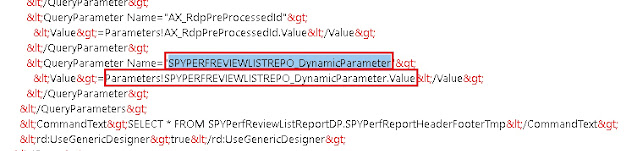
- Please note that we can ignore the DynamicParameter as these are due to query dialogs on the report and cannot be used on the EP.
- Now that we know we have three parameters as highlighted above being used in the report. Please create the button click procedure to pass all the parameters to the report and when the AddParameters method is called the report is triggered.
public partial class SPYLeaveBalanceReport : System.Web.UI.UserControl
{
    protected void Page_Load(object sender, EventArgs e)
    {

    }
    protected void btnPrint_Click(object sender, EventArgs e)
    {
        Dictionary parms = new Dictionary();

        parms.Add("LeaveDetails_AsOnDate", DateTime.Parse(txtAsOnDate.Text).ToString("G"));

        if ( chkShowDetails.Checked == true)
        {
            parms.Add("LeaveDetails_ShowDetails", "Yes");
        }
        else
        {
            parms.Add("LeaveDetails_ShowDetails", "No");
        }
        parms.Add("LeaveDetails_absenceCode", "");

        this.axLeaveBalanceReport.AddParameters(parms);
    }
}
Step 2: Creating a page to host the User control created in step 1
- Open Enterprise portal and navigate to the page where the new link has to be created and then click on -> Site Actions –> More Options –> Page –> Create –>
- Provide name for the page –> Select the layout –> Select Library as Enterprise Portal –> OK.
Please use the right page type (Header, Footer, 3 columns) else the page might not show the page navigation of the parent page. A new page will now be created relative to the page we started from. The address of the newly created page will be visible in the address bar. Click edit to open the page in design mode and add a webpart called SPYLeaveBalancesESS created above.
Step 3: Create a navigation to the above sharepoint page
Now that the sharepoint page with the UserControl has been created and saved. We have to create a navigation to the same from the menu where we desire.
- So we start from the front end screen where we wish to place the new link. Given the screen below one would start from the Web Menus in the AOT
- We browse the Web menu intuitively to figure out the above menu. Once we get the menu in the property sheet we will be able to find the WebMenu that is used in the property sheet under the property QuickLaunch : SPYHCPMListPageQuickLaunch (shown below)
Once the Web Menu name is identified we can expand the same in the AOT and we will be able to notice that the Web Menu is a group of Web Menu Items of url type.
Each Menu item is hence a url to a specific page on the sharepoint portal. We will have to now create a new URL web menu item and add the page that we created in step 1 as the URL. The URL should begin relative from the portal where it is being assigned. Hence the url for web page "Leave balance.aspx" which was added under employee portal would be
EmployeeServices/Enterprise%20Portal/Leave%20balance.aspx
Once the menu has been created and the URL has been specified the page can be imported into AOT from the sharepoint portal. This is useful when the deployment has to be migrated from the DEV server to the Production server. Once the page has been imported we will get an Info Log as shown below.
The last piece of the deployment is to add this newly created Web Menu URL to the Web Menu by dragging and drop it on the menu.