Showing posts with label SSRS. Show all posts

Tuesday, June 24, 2025

The number of defined parameters is not equal to the number of cell definitions in the parameter panel.

Every SSRS report has a parameters layout. The parameter layouts is where the parameters are presented to the user at the run time to drive the report behavior. The parameter layout has a layout with no of rows and columns that is used to present the parameters. If the no of parameters are more than the no of cells that the cross section of Rows and Columns can accommodate then we will have the following error: 

"The number of defined parameters is not equal to the number of cell definitions in the parameter panel."

Solution: 

In Dynamics we don't have a visual layout to control the parameters, hence we have to open the SSRS Report in XML format in order to edit the parameter layout. To open a report in XML format we need to right click the same and choose open with.. 

We should find the following section in the xml format and delete the same, so that the no of rows and columns are not defined and restricted. 

<ReportParametersLayout>
  <GridLayoutDefinition>
    <NumberOfColumns>3</NumberOfColumns> 
    <NumberOfRows>...</NumberOfRows>
  </GridLayoutDefinition>
</ReportParametersLayout> 


Wednesday, March 06, 2024

Extra parameters on Report

 I have created a class with 2 parameters however when the Dialog box is rendered there are 4 parameters displayed as shown below


So basically when the parameters are rendered these are done from the SSRS report. When we open the SSRS report parameters we can notice that these additional parameters are added to the report and these are the same parameters which are repeating. 

To solve the issue, we need to delete the unwanted parameters from the parameters list and redeploy the report. 


Tuesday, April 25, 2023

SSRS Report CreatedTransactionId

CreatedTransactionId, is a read-only field maintained by AX.  

For a table that has its CreatedTransactionId property set to Yes, when an insert occurs, AX automatically sets the CreatedTransactionId value (to the current value of appl.curTransactionId()).  

The CreatedTransactionId is tied to the outermost transaction only – that is, if there are nested transactions, they do not get their own CreatedTransactionId, but instead share the same one as the master (outermost) transaction.   Only after the ttsLevel has dropped back to 0 will a new CreatedTransactionId get generated.


Thursday, December 23, 2021

SSRS format date in User

When the date needs to be formatted in SSRS as per the user settings then use the following 

       
=Microsoft.Dynamics.Framework.Reports.DataMethodUtility.ConvertUtcToAxUserTimeZoneForUser(Parameters!AX_CompanyName.Value, Parameters!AX_UserContext.Value, System.DateTime.UtcNow, "d", Parameters!AX_RenderingCulture.Value)
 

When the time needs to be formatted in SSRS as per the user settings then use the following 

       
=Microsoft.Dynamics.Framework.Reports.DataMethodUtility.ConvertUtcToAxUserTimeZoneForUser(Parameters!AX_CompanyName.Value, Parameters!AX_UserContext.Value, System.DateTime.UtcNow, "d", Parameters!AX_RenderingCulture.Value)
 

Tuesday, December 21, 2021

Report deployment error "Sequence contains no matching element"

 Sometimes when we change the source query of the datasets and redeploy the report we can get the error "Sequence contains no matching element"

It turned out that during the dataset restore a parameter was added. It was added at the Parameters node at the report level and the node Parameters, however if one of the parameters is deleted then this error will occur. 

So, this error occurs if a parameter name is being referred to at the dataset level and the same parameter does not exist at the report level. 

To resolve this error ensure that each parameter at the dataset level is mapped to a parameter at the report level. Also use dynamic parameters only for one dataset and not for multiple.

If the error still exists then try to recollect the parameters that you have lately modified and check if a reference for them still exists in the XML file and try to manually resolve them and map them to the newly updated parameters. Search QueryParameter in the XML and check the parameters individually for each dataset and report to identify any incorrect value and accordingly correct or remove the value from XML.

Sometimes this error can also occur is a report was deployed with Dynamic Parameter and then was changed to have Dynamic Parameter to false. In such cases make sure that you enable the dynamic parameter for the first dataset and then try to deploy again. 


Thursday, December 16, 2021

SSRS New Report creation

The report development is based on the MVC framework pattern. As part of this framewoek there are 2 main classes required for report development. Firstly, the contract class to store the necessary data for report generation. Secondly, we need the data provider class that is used to encapsulate the business logic to process for generation of the report. 

Following are the steps and necessary constructs/ data attributes required to create a report from the scratch

  1. Start by creating a contract class which would have the necessary fields to capture data on the report request stage. These data fields are then later used in the DataProvider class to filter our the required data. 
       

[DataContractAttribute]

class SPYSalaryHistoryContract implements SysOperationValidatable
{
    FromDate    fromDate;
    ToDate      toDate;

    [DataMemberAttribute("FromDate"),
    SysOperationLabelAttribute(literalStr(@SPY1278)),
    SysOperationHelpTextAttribute(literalStr(@SPY1278))]
    public FromDate parmFromDate(FromDate _fromDate = fromDate)
    {
        fromDate = _fromDate;
        return fromDate;
    }

    [DataMemberAttribute("ToDate"),
    SysOperationLabelAttribute(literalStr(@SPY1279)),
    SysOperationHelpTextAttribute(literalStr(@SPY1279))]
    public FromDate parmToDate(FromDate _toDate = toDate)
    {
        toDate = _toDate;
        return toDate;
    }

    public boolean validate()
    {
        boolean ret = true;

        if(fromDate > toDate)
            ret = checkFailed('@SPY:DateValidationMsg');
    
        return ret;
    }

}	
2. Create the DataProvider class. 

The data provider class should extend from the SrsReportDataProviderPreProcess method. When extended from this class the data provider will provide the necessary structure to populate the data table before the report is triggered. 

[
    SRSReportParameterAttribute(classStr(SPYSalaryHistoryContract)),
    SRSReportQueryAttribute(queryStr(HcmWorkerLookup))
]

class SPYSalaryHistoryDP extends SrsReportDataProviderPreProcess
{
    SPYPromotionSalaryTableTmp    promotionSalaryTableTmp;

    [SRSReportDataSetAttribute(tableStr(SPYPromotionSalaryTableTmp))]
    public SPYPromotionSalaryTableTmp getSPYPromotionDetailsTmp()
    {
        select promotionSalaryTableTmp;
        return promotionSalaryTableTmp;
    }

    public void setTableConnections()
    {
        promotionSalaryTableTmp.setConnection(this.parmUserConnection());
    }

    public void processReport()
    {
        Query                   query;
        QueryRun                queryRun;
        FromDate                fromDate, toDate;

        SPYSalaryHistoryContract    contract = this.parmDataContract() as SPYSalaryHistoryContract;

        fromDate = contract.parmFromDate();
        toDate =   contract.parmToDate();

        
        query = this.parmQuery();
        queryRun = new QueryRun(query);

        while(queryRun.next())
        {
        }

    }

} 
Once the above constructs are created a new SSRS report can be created. To start the designing we will have to begin by adding DataSource which should be  Report Data Provider. When can then specify a Query to link the DataSource to a table in the DP class. 

Two important attributes are used in RDP classes are:
  1. SRSReportParameterAttribute:  defines the data contract class that will be used by this report to prompt for parameter values. If the RDP class contains any parameters this define this attribute at the beginning of the class.
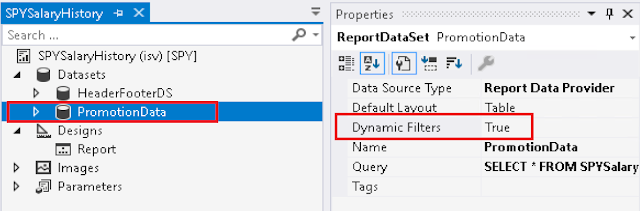
  2. SRSReportQueryAttribute:  specifies which AOT query will be used in this report. If the RDP class uses an AOT query to process data, define this attribute at the beginning of the class. However, for this attribute to work the Dynamic Filter should be set to true on the DataSet node of the report as shown below

Thursday, April 22, 2021

Deploying User control in EP

Once a certain functionality has been developed using User Controls for EP, the next step is to deploy this functionality on the EP portal. Following are the steps that are used to deploy an SSRS report, using a parameters forms (User control) on EP.

Basically the process involves two steps :- 

  1. Creating the UserControl to accept the report parameters
  2. Creating a new page to host the UserControl, which is used to accept the parameters. 
  3. Creating a navigation to viewing this page.
Step 1: Creating of the user control to accept report parameters

  • Start by creating a new project in Visual Studio for the EP Web Application and then add EP User Control to the project. 
  • The control that would be used for viewing a report would be the AxReportViewer control and to be able to use this we will have to ensure that the AxBaseUserControl is added and reference to the ApplicationProxies is added to the project.  
  •  Create the necessary interface for accepting the parameters on the screen. This could be a combination of asp and Ax controls if required. 
  • The Report that needs to be printed should be a SSRS report and should be based on the SRSReportDataProviderBase class
  • The report should have an output menu ( LeaveBalance in this example ) 
  • Add the AxReportViewerControl from the toolbox and assign the output menu as a property as shown below 
  • Now lets add the code for the print button click. The first thing we need to do is to open our SSRS report and view all the parameters that are present. Its important that we assign a value to all the parameters that the report uses
  • Please note that we can ignore the DynamicParameter as these are due to query dialogs on the report and cannot be used on the EP.

  • Now that we know we have three parameters as highlighted above being used in the report. Please create the button click procedure to pass all the parameters to the report and when the AddParameters method is called the report is triggered. 
public partial class SPYLeaveBalanceReport : System.Web.UI.UserControl
{
    protected void Page_Load(object sender, EventArgs e)
    {

    }
    protected void btnPrint_Click(object sender, EventArgs e)
    {
        Dictionary parms = new Dictionary();

        parms.Add("LeaveDetails_AsOnDate", DateTime.Parse(txtAsOnDate.Text).ToString("G"));

        if ( chkShowDetails.Checked == true)
        {
            parms.Add("LeaveDetails_ShowDetails", "Yes");
        }            
        else
        {
            parms.Add("LeaveDetails_ShowDetails", "No");
        }            
        parms.Add("LeaveDetails_absenceCode", "");

        this.axLeaveBalanceReport.AddParameters(parms);        
    }
}

Step 2: Creating a page to host the User control created in step 1
  • Open Enterprise portal and navigate to the page where the new link has to be created and then click on -> Site Actions –> More Options –> Page –> Create –> 
  • Provide name for the page –> Select the layout –> Select Library as Enterprise Portal –> OK.

Please use the right page type (Header, Footer, 3 columns) else the page might not show the page navigation of the parent page. A new page will now be created relative to the page we started from. The address of the newly created page will be visible in the address bar. Click edit to open the page in design mode and add a webpart called SPYLeaveBalancesESS created above.


Step 3: Create a navigation to the above sharepoint page
Now that the sharepoint page with the UserControl has been created and saved. We have to create a navigation to the same from the menu where we desire. 
  • So we start from the front end screen where we wish to place the new link. Given the screen below one would start from the Web Menus in the AOT

  • We browse the Web menu intuitively to figure out the above menu. Once we get the menu in the property sheet we will be able to find the WebMenu that is used in the property sheet under the property QuickLaunch : SPYHCPMListPageQuickLaunch (shown below)

Once the Web Menu name is identified we can expand the same in the AOT and we will be able to notice that the Web Menu is a group of Web Menu Items of url type. 


Each Menu item is hence a url to a specific page on the sharepoint portal. We will have to now create a new URL web menu item and add the page that we created in step 1 as the URL. The URL should begin relative from the portal where it is being assigned. Hence the url for web page "Leave balance.aspx" which was added under employee portal would be 

EmployeeServices/Enterprise%20Portal/Leave%20balance.aspx 

Once the menu has been created and the URL has been specified the page can be imported into AOT from the sharepoint portal. This is useful when the deployment has to be migrated from the DEV server to the Production server. Once the page has been imported we will get an Info Log as shown below.


The last piece of the deployment is to add this newly created Web Menu URL to the Web Menu by dragging and drop it on the menu. 


Wednesday, April 21, 2021

Format date as per user setting

 In SSRS when dates need to be formatted as per the user preferences and time zone use the below expressions: 

       
Microsoft.Dynamics.Framework.Reports.DataMethodUtility.ConvertUtcToAxUserTimeZoneForUser(Parameters!AX_CompanyName.Value, Parameters!AX_UserContext.Value, System.DateTime.UtcNow, "d", Parameters!AX_RenderingCulture.Value)
 

In the above expression System.DateTime.UtcNow should be replaced with the actual data.

Sunday, November 20, 2016

SSRS Report UI Builder


UI Builder report is used to manipulate the request form rendered by the AX framework before a report is executed. The request form for a report is generated by the framework based on the meta data provided by the contract class.

 Below are the steps that are required to manage the User Interface of a report
  1. Create a UI builder class by extending the class SrsReportDataContractUIBuilder.
  2. We will have to create event handlers for the control on the report contract. 
  3. The event handlers created in step 2 will have to be attached to the control created  by the reporting framework using the PostBuild method of the UIBuilder class.
  4. The contract class has to be modified to include a reference to the UIBuilder class. This is done by including the SysOperationContractProcessingAttribute on the contact class declaration.
    [
        DataContractAttribute
        ,SysOperationContractProcessingAttribute(classstr(STPLedgerBalanceReportUIBuilder))
    ]
     

class STPLedgerBalanceReportUIBuilder extends SrsReportDataContractUIBuilder
{
    STPLedgerBalanceReportContract contract ;
}

public void build()
{
    super();

    Contract      = this.dataContractObject();  
}

public void lookup(FormStringControl _control)
{
    container cnt;

    Query query = new Query();
    QueryBuildDataSource    qbds, qbdsCI;
    QueryBuildRange         range, rangeDA;

    qbds = query.addDataSource(tableNum(USERDATAAREAFILTER));
    range = qbds.addRange( fieldNum( UserDataAreaFilter, User) );
    range.value( SysQuery::value( curUserId())) ;

    qbdsCI = qbds.addDataSource( tableNum( CompanyInfo) );
    qbdsCI.addLink( fieldNum( UserDataAreaFilter, DataArea) , fieldNum( CompanyInfo, DataArea) );
    qbdsCI.joinMode(JoinMode::InnerJoin);

    if ( Global::hasTableAccess( tableNum( STPRowDefinitionLine) , AccessType::Delete) == false )
    {
        rangeDA = qbds.addRange( fieldNum( UserDataAreaFilter, DataArea) );
        rangeDA.value( SysQuery::value( curext()) );
    }

    qbds.fields().clearFieldList();
    qbds.fields().addField(fieldNum(USERDATAAREAFILTER, DataArea));
    qbdsCI.fields().addField ( fieldNum( CompanyInfo,Name) ) ;


    SysLookupMultiSelectGrid::lookup(query, _control, _control, cnt);
}

public void postBuild()
{
    DialogField     companyList;
    super();

    companyList = this.bindInfo().getDialogField( this.dataContractObject(),  methodStr(STPLedgerBalanceReportContract, parmCompanyList) ) ;

    companyList.registerOverrideMethod(
          methodStr(FormStringControl, lookup),
          methodStr(STPLedgerBalanceReportUIBuilder,Lookup),
          this);
}

 public void getFromDialog()
{  
    super();
}

Wednesday, October 05, 2016

SSRS EP Report Parameters

This is my first post on Enterprise Portal of AX 2012. There a lot of terms, that i have come across while trying to get this assignment done. I have tried to build my own interpretation of these terms, so would like a disclaimer that some of these might not be entirely correct.

The agenda is to publish a certain report on EP along with accepting the filter parameters.

UserControl: This term is often come across when dealing with EP development. A user control is an equivalent of a Form in AX which can render a presentation layer. The difference being that a user control further needs a sharepoint webpart to be hosted within.

To facilitate creation of these user controls, the EP framework has some templates defined and these can be used to create a user control. The templates can be accessed once the project is selected, followed by click on the project menu -> Add new item


For designing a request form to accept the report parameters, please use the "EP User Control with Form" Template. Also take care to change the name of the control at the time of selecting an item, changing the name later has issues syncing the objects with AOT.

The elements on the user control are picked used a group designed for AX on the toolbar. The group is called dynamics AX (shown below, highlighted in red) 


At this point it is important to understand the different files that are generated as a part of instantiation from the template.
The first file is AFZLeaveDetailsReport.ascx; this file stores the basic structure of the presentation. The ascx file is something like a webpage which has the html markup but not the code.

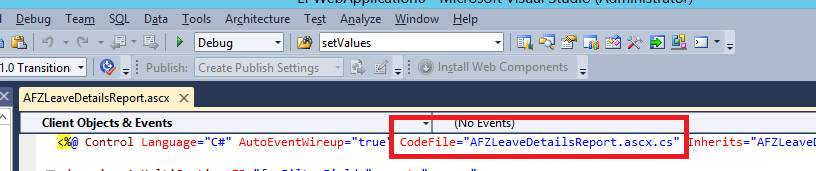
The second file is the AFZLeaveDetailsReport.ascx.cs; this file contains the control definitions for the different controls used on the page. This is basically where the code and events for the controls are created. The link between the two files is created using a codefile tag in the source file ("AFZLeaveDetailsReport.ascx") also shown below  


The third file is the AFZLeaveDetailsReport.aspx.designer.cs; this file contains the definition for any server controls that are used on the markup file ("AFZLeaveDetailsReport.ascx"). This allows the visual studio to do intellisense in the code behind page based on the controls used on the markup page.

( Note: i wondered why the definitions could not be stored in the markup files itself ; the probable reason is that the markup files being units of html have to follow the html standard/format. But this is just a guess )

Now one can design the layout of the request form. We can use a combination of AX controls and asp controls to create a GUI of our choice. Assuming that this GUI would  be used to accept the values for the parameters of the report in focus; once the parameter values have been gathered on the form these will have to be passed on the report object. I have conceived a design where there would be a command button on the form to trigger the report.

To be able to print SSRS report AX Report Viewer control  (shown below) can be used


Just drag and drop this on the user control to create the required construct. Once the control has been dropped it would create a tag as follows: -


 in the above tag ID and MenuItemName have been manually updated using the property sheet in the GUI. The menu name is the output menu item that has an SSRS report attached to it.

To look for and edit the code behind the Print Report button, double click on it and the editor would automatically open the CodeBehind file ("AFZLeaveDetailsReport") with the right parameters for the button on_click event.


The way to pass parameters is to collect them into an dictionary object with an ID name exactly like the parameter name on the report. ( to get the parameter names in the report, one will have to open the SSRS report in visual studio and copy and names from the parameter node of the report.)

Dictionary parms = new Dictionary();

parms.Add("SPYLeaveDetailDS_FromDate", txtFromDate.text);
parms.Add("SPYLeaveDetailDS_ToDate", txtToDate.text);
parms.Add("SPYLeaveDetailDS_EmployeeList", txtEmpNo.text);

// Add the parameters to the report control 
this.LeaveDetailsReport.AddParameters(parms);


Please note that in EP a report would not render if the DP class for the same is extended from SrsReportDataProviderPreProcess. If you have a pre-process report then please consider changing it to SRSReportDataProviderBase

Sunday, March 27, 2016

SSRS Report Caption

Had this strange issue when the dialog of the report was not updated for the caption. The dialog picks the value for the first time from the MenuItem, however this only happens at the time of first run and there after the details are saved in usage data.

The only means to get rid of this information is to clear the usage data. Use the below filters
RecordType = Class
ElementName = SrsReportRunController


Select the data relevant to the report to be refreshed and press CTRL + F9 to delete the records.

Wednesday, September 30, 2015

Refresh SSRS Report

There is this common problem encountered while working with SSRS reports and AX 2012. The report changes are not reflected on the SSRS Reports servers

I found a sequence of steps which if followed ensures that the Report is updated. These steps are as follows:
  1. Rebuild all on Visual Studio Project
  2. Add the project to AOT
  3. Right click the report on AOT and Restore
  4. Deploy element from AOT 
Hope for the best :-)