SysCheckList_Update::finalizeMinorUpgrade();
Tuesday, January 03, 2023


Saturday, June 18, 2022
Find SID for a user
Use the following command to find the SID for a given user
wmic useraccount where name="USER" get sidTuesday, February 22, 2022
SSRS Report Company does not exist error
Recently has this issue where when a report was executed an error was logged.

The issue identified was with the contract class. The report i created was a RDP report however the contract class that i created was extending SrsReportRdlDataContract.
When a contract class is being created for a RDP Report then the contract class need not extend any base report and can simply implement the required interfaces like SysOperationValidatable.
Item or Product or Product Master
Item and Product are terms that have a similar meaning and as both terms are used in the D365 system, it is confusing and important to understand the glossary in its true terms.
The term that D365 associates for an Inventory entity is Product.
When a product is being designed at an abstract level it is called Product Master. This serves as a template or model for creation of the actual products. We have three important aspects to consider when thinking about a product master.
- Product Dimension: Will the product have additional variants on its inception as a product.
- Storage Dimension: What level of storage details would be maintained for the product when it is created. This could be a combination of Location, Warehouse, Pallet etc
- Tracking Dimension: Will the product be tracked for Batch and Serial information during its movement across the different transactions.
With all the above attributes decided and attached to the product master; an Item is created which is a physical concept and will have transactions created against itself.
Product also has a classification called Product Type which could either be Item or Service which are self-explanatory.
Products are released to legal entities where they are relevant and released Items are created in the entities where they are authorized.
Thursday, December 23, 2021
SSRS format date in User
When the date needs to be formatted in SSRS as per the user settings then use the following
=Microsoft.Dynamics.Framework.Reports.DataMethodUtility.ConvertUtcToAxUserTimeZoneForUser(Parameters!AX_CompanyName.Value, Parameters!AX_UserContext.Value, System.DateTime.UtcNow, "d", Parameters!AX_RenderingCulture.Value)
When the time needs to be formatted in SSRS as per the user settings then use the following
=Microsoft.Dynamics.Framework.Reports.DataMethodUtility.ConvertUtcToAxUserTimeZoneForUser(Parameters!AX_CompanyName.Value, Parameters!AX_UserContext.Value, System.DateTime.UtcNow, "d", Parameters!AX_RenderingCulture.Value)
Wednesday, December 22, 2021
Visual Studio Crash on edit
Visual studio can sometimes behave nasty and can keep crashing on each edit that is done. In such cases one of the tricks that has helped is to disable the word wrap in the editor.
To disable the word wrap goto:
Tools->Options->Text Editor-> All languages
Disable word wrap as shown below

Tuesday, December 21, 2021
Parameter does not exist in report
The following error occurs when a parameter value is saved in the report xml and is not on the design of the report.

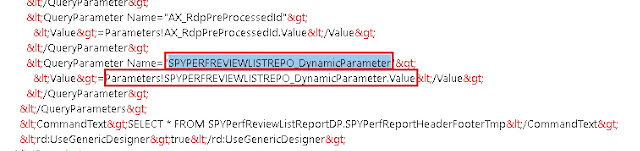
If we observe the design of the report we can notice that the parameter "SPYPERFREVIEWLISTREPO_DynamicParameter" which is reported missing does not exist on the design. Which means that the design did not sync with the XML and this parameter is still being referred with an incorrect parameter name.

To fix this error we open the report in XML layout and replace the parameter name with "SPYPERFREVIEWDETAILSR_DynamicParameter" in this case as this is the actual name of the parameter.
Report deployment error "Sequence contains no matching element"
Sometimes when we change the source query of the datasets and redeploy the report we can get the error "Sequence contains no matching element"

It turned out that during the dataset restore a parameter was added. It was added at the Parameters node at the report level and the node Parameters, however if one of the parameters is deleted then this error will occur.
So, this error occurs if a parameter name is being referred to at the dataset level and the same parameter does not exist at the report level.
To resolve this error ensure that each parameter at the dataset level is mapped to a parameter at the report level. Also use dynamic parameters only for one dataset and not for multiple.
If the error still exists then try to recollect the parameters that you have lately modified and check if a reference for them still exists in the XML file and try to manually resolve them and map them to the newly updated parameters. Search QueryParameter in the XML and check the parameters individually for each dataset and report to identify any incorrect value and accordingly correct or remove the value from XML.
Sometimes this error can also occur is a report was deployed with Dynamic Parameter and then was changed to have Dynamic Parameter to false. In such cases make sure that you enable the dynamic parameter for the first dataset and then try to deploy again.

SSRS Report Errors
There are situations when runtime errors are generated by report datasets. Viewing these errors provides us information on how to debug the error.

The log for the same can be found under windows event viewer at the location Application and Services Logs -> Microsoft -> Dynamics ->

Each of the above nodes can be checked for the potential error. Click on the details node to get the details of the error

Thursday, December 16, 2021
SSRS New Report creation
The report development is based on the MVC framework pattern. As part of this framewoek there are 2 main classes required for report development. Firstly, the contract class to store the necessary data for report generation. Secondly, we need the data provider class that is used to encapsulate the business logic to process for generation of the report.
Following are the steps and necessary constructs/ data attributes required to create a report from the scratch
- Start by creating a contract class which would have the necessary fields to capture data on the report request stage. These data fields are then later used in the DataProvider class to filter our the required data.
[DataContractAttribute]

class SPYSalaryHistoryContract implements SysOperationValidatable
{
    FromDate    fromDate;
    ToDate      toDate;

    [DataMemberAttribute("FromDate"),
    SysOperationLabelAttribute(literalStr(@SPY1278)),
    SysOperationHelpTextAttribute(literalStr(@SPY1278))]
    public FromDate parmFromDate(FromDate _fromDate = fromDate)
    {
        fromDate = _fromDate;
        return fromDate;
    }

    [DataMemberAttribute("ToDate"),
    SysOperationLabelAttribute(literalStr(@SPY1279)),
    SysOperationHelpTextAttribute(literalStr(@SPY1279))]
    public FromDate parmToDate(FromDate _toDate = toDate)
    {
        toDate = _toDate;
        return toDate;
    }

    public boolean validate()
    {
        boolean ret = true;

        if(fromDate > toDate)
            ret = checkFailed('@SPY:DateValidationMsg');

        return ret;
    }

}
The data provider class should extend from the SrsReportDataProviderPreProcess method. When extended from this class the data provider will provide the necessary structure to populate the data table before the report is triggered.
[
    SRSReportParameterAttribute(classStr(SPYSalaryHistoryContract)),
    SRSReportQueryAttribute(queryStr(HcmWorkerLookup))
]

class SPYSalaryHistoryDP extends SrsReportDataProviderPreProcess
{
    SPYPromotionSalaryTableTmp    promotionSalaryTableTmp;

    [SRSReportDataSetAttribute(tableStr(SPYPromotionSalaryTableTmp))]
    public SPYPromotionSalaryTableTmp getSPYPromotionDetailsTmp()
    {
        select promotionSalaryTableTmp;
        return promotionSalaryTableTmp;
    }

    public void setTableConnections()
    {
        promotionSalaryTableTmp.setConnection(this.parmUserConnection());
    }

    public void processReport()
    {
        Query                   query;
        QueryRun                queryRun;
        FromDate                fromDate, toDate;

        SPYSalaryHistoryContract    contract = this.parmDataContract() as SPYSalaryHistoryContract;

        fromDate = contract.parmFromDate();
        toDate =   contract.parmToDate();


        query = this.parmQuery();
        queryRun = new QueryRun(query);

        while(queryRun.next())
        {
        }

    }

}
Once the above constructs are created a new SSRS report can be created. To start the designing we will have to begin by adding DataSource which should be Report Data Provider. When can then specify a Query to link the DataSource to a table in the DP class.
Two important attributes are used in RDP classes are:
- SRSReportParameterAttribute: defines the data contract class that will be used by this report to prompt for parameter values. If the RDP class contains any parameters this define this attribute at the beginning of the class.
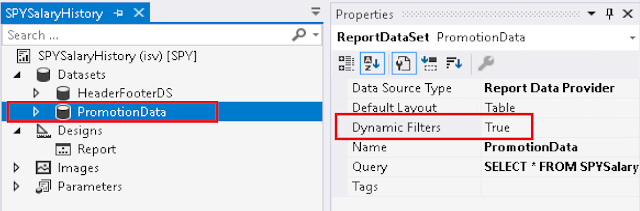
- SRSReportQueryAttribute: specifies which AOT query will be used in this report. If the RDP class uses an AOT query to process data, define this attribute at the beginning of the class. However, for this attribute to work the Dynamic Filter should be set to true on the DataSet node of the report as shown below
The number of defined parameters is not equal to the number of cell definitions in the parameter panel.
When a report is duplicated the name of the report changes and this results in the change of the parameter names that are used in the reports.
When we try to deploy a report where the parameters in the parameter section of the report design, does not match with that of the ones defined in the xml then we get this error.
To rectify this error
1. Open the report design and notice the parameters in the parameter panel.

2. Open the report using an XML editor. Right click the report and choose open with

3. Search for ReportParametersLayout section in the XML file

Insert a new parameter as follows in the XML and save the file. When pasting a new parameter please ensure to increment the columnIndex

Deploy the report and it should be successfully deployed.
Sunday, June 13, 2021
SSRS Contract class parameters not refreshed
When we design the report the parameters are copied from the contract class and the details for them are stored in the report parameters.
In case that we later change the parameters in the contract class and the same are not refreshed in the SSRS Report parameters, there is a possibility that we will continue to see the parameters even though they are deleted from the contract class. This is due to the fact that the parameters are being fetched from the SSRS report.
To get rid of the issue, delete all the parameters in the report design, and restore the dataset again. When the dataset is refreshed the required parameters are automatically added to the report.
X++ check for null value
X++ was designed in a way that the complications around null value are not required and hence X++ manages a default value always to ensure that null exceptions do not occur. The null can however occur when there is a view defined with outer joins.
The obvious option it to handle this using SQL and a computed column in views. However in my case the columns were far too many to created a computed column for each and hence i wanted to handle null in the x++ code itself. I wanted to check if the value of a field in the view in null and accordingly take an action to either copy or ignore it.
the easiest way to do it, let x++ evaluate it on its own by placing it in round brackets. If the field is not null it would evaluate to true and in case of null it would evaluate to false.
employeeNewJoinedTmp.Grade = ( workerDetails.Grade) ? "" : workerDetails.Grade;
Saturday, June 12, 2021
Sequence contains no matching element at System.Linq.Enumerable.Single[TSource](IEnumerable`1 source, Func`2 predicate)
This error occurs when there is a parameter at the subnode (Dataset) level, which is supposed to be mapped to report parameter; however, it does not map to one.
This can happen when we selected to have the Dynamics Filters = True for the dataset (which would create corresponding elements at the report level) and later deleted them from the report level, thus leaving the dataset level filters as orphan and without a matching filter.

In the screen above we can see that the HeaderFooter dataset refers to a parameter called HeaderFooter_parmBankAccountId and this does not exist at the report level. We should map this to a valid report parameter if it exists, or we can set the dynamic filters to false and then true again so that these filters are created again if missing.
The number of defined parameters is not equal to the number of cell definitions in the parameter panel
This issue can occur when a developer copies a report from an existing design and tries to make the changes to the dataset.
There are parameters passed between the AX system and SSRS framework and these need to be in Sync. The parameters are stored at 3 levels and it needs to be in Sync. Sometimes it can happen that due to the edits one makes these move out of Sync in such cases we have to manually fix it.
Its important that for every parameter at the report level, there is a corresponding parameter at the dataset level.

The other odd place where the parameters are saved is in the XML file and it can sometimes not be seen/referred on the screen. Hence to fix these we should open the report using an xml editor. Right click the report and choose to open with XML editor.
Once the xml editor is opened , one can see that there parameters referred in the XML file which do not exist on the dataset. These are from a previous dataset PromotionSalaryDS which now is probably removed and hence the mismatch.
We should manually delete these parameters to match the list as per the report parameters.


Friday, June 11, 2021
X++ get T-SQL Statement
Something that is frequently required to debug SQL statement is the select query that is generated. To get the SQL statement associated with the x++ select
Use the generate only and forceliterals clause in the statement.
        select generateonly forceliterals disbursementJournal
            join disbursementDetails
            where disbursementJournal.DisbursementDetailsRecId == disbursementDetails.RecId
                && disbursementJournal.OffsetBankAccount == _bankAccountId
                && disbursementDetails.PayrollPeriodLine == _payrollPeriodLine
            join hcmWorker
            where hcmWorker.RecId == disbursementJournal.Worker
            join workerBankAccount
            where workerBankAccount.Worker == disbursementDetails.Worker
                && workerBankAccount.RecId == disbursementJournal.WorkerBankAccount
            join companyBankAccount
            where companyBankAccount.AccountID == disbursementJournal.OffsetBankAccount
            join payrollPeriodLine
            where payrollPeriodLine.RecId == disbursementDetails.PayrollPeriodLine;

info( disbursementJournal.getSQLStatement()); Friday, June 04, 2021
DateTime in Dynamics
DateTime fields have some complexity added to them because these fields are stored in SQL server and are displayed in Dynamics as per the user timezone.
Because timezone is not stored along with the DateTime filed in SQL; Dynamics always assumes that the date is in UTC date time format and if it needs to be displayed to the user then it is convereted from that timezone to the user timezone by the dynamics framework.
This understanding is important when working with DateTime fields as the data that one might see in the SQL database might be different and that is because the framework is converting the time from the user timezone to UTC.
The different timeZones that the system supports are defined as a TimeZone enum
- Timezone::GMTMINUS0600CENTRALTIME;
- Timezone::GMTMINUS0500EASTERNTIME;
- Timezone::GMTMINUS0800PACIFICTIME;
There are a lot of functions in the DateTimeUtil class to hanlde the different time conversion scenarios the important ones are :
- Convert to the logged in users TimeZone
DateTimeUtil::applyTimeZoneOffset(myDateTime,DateTimeUtil::getUserPreferredTimeZone()); - Convert to a specific TimeZone
DateTimeUtil::applyTimeZoneOffset(myDateTime,myTimeZone);
Sunday, May 23, 2021
Power BI data export to SQL Server
There might be scenarios where you might want to export the data from Power BI to SQL server. In my case there were two dashboard where a certain value was not matching and i wanted to do a SQL query to figure out what was missing.
So with some research I found out that, Power BI uses SSAS services in the background to store and fetch data to and from the datamodel that is created. Power BI ships with the SSAS service "msmdsrv.exe" (found in bin folder of power bi installation) and an instance of this service is create for each power bi desktop session.
If we can access this instance we should also be able to import data from the same. We know that the service would be running on the localhost but what we dont know is the port at which it is running. To find the port number is a two step process:
Step 1: Find the ProcessID of the msmdsve.exe on the local server use the following command on an elevated command prompt.
TASKLIST /FI "imagename eq msmdsrv.exe" /FI "sessionname eq console"

netstat /ano | findstr "<PID from step 1>"

We have used PID 15480 from the first command and from the TCP responses the first line exposes the port number that is being used by the service.
Create a SSIS project in Visual Studio and drag the DataFlow task on the canvas as shown below.

Right click the data flow task and choose edit. This should take us to the DataFlow tab from the control flow tab. In the dataflow tab select Source assitance and create a new connection to the local SSAS server that we figured out in the steps above


Use the server name details as discovered with NT authentication and just select the intial catalogue whcih is randomly generated.

Now, edit the source connection and populate the details similar to as show below.

The SSIS package can now be executed to import the data. One issue that I have noticed with the above procedure is that the data type for the different columns is not correctly identified and a lot of the columns end up being imported as varchar(255) an alternate to this could be to format this data in excel file and then import from excel after formatting the columns there.
To import the data into excel we need to create a connection to the SSAS server with the same details as above. The only trick that is required in this process is to treat the SSAS source as a table rather than a cube so that flat data can be imported.
When the connection to SSAS cube is created the connection is saved as a folder "C:\Users\santosh.singh\Documents\My Data Sources" (replace santosh.singh with the user name that you are logged in with).

In this folder locate the connection that you have just created and edit this as a text file replace the two fields (CommandType and CommandText)

Enter the CommandType as Query and CommandText with a DAX Query which to extact a flat table from a cube is evaluate <TableName>

Once the above changes are done import the data using Excel and the data would appear as a flat table rather than a cube (Pivot). Once the import is done format the columns with the correct data type and then import the excel into SQL server using SSIS.

Wednesday, May 19, 2021
SSIS OData Package
While testing a PowerBI report we realized that the data being presented is wrong due to some join issue. Its always easier to analyze the impact of an incorrect join when we have a access to SQL database. We are using Dynamics data in PowerBI using Odata entities. Hence in order to check the validity of the joins, it was desired to have the Data in SQL Server.
We decided to write an SSIS package to copy the data from Dynamics D365 to SQL Server. When we starting OData we received an error
[OData Source [2]] Error: Cannot acquire a managed connection from the run-time connection manager.
[SSIS.Pipeline] Error: OData Source failed validation and returned error code 0xC020801F.
We can resolve this using the below steps:
Install Microsoft .NET 4.6 and above on your computer and Enforce TLS 1.2 on your machine through registry settings.
In an elevated command prompt run the following commands:
reg add HKLM\SOFTWARE\Microsoft\.NETFramework\v4.0.30319 /v SchUseStrongCrypto /t REG_DWORD /d 1 /reg:64
reg add HKLM\SOFTWARE\Microsoft\.NETFramework\v4.0.30319 /v SchUseStrongCrypto /t REG_DWORD /d 1 /reg:32
Monday, May 17, 2021
SOAP vs REST Web APIs
Have started working on some integration pieces and it required clarity on the standards to be used. From the little research that I have done below is the understanding. For any interaction to happen between applications we need to have a handshake at two levels :-
- The protocol to be used to exchange the data packets.
- The format in which the data packets will be exchanged.
SOAP:
This is a full protocol. Its like an envelop which is added on top of the message. Because SOAP is an envelope the messages need to be packed and unpacked to and from the enveloped. The message is however formatted in XML.
REST:
Rest does not directly compare to SOAP as its not a protocol. Its like a postcard which is open and it is transferred over http protocol. Thus making it light and faster however less secure. The messages in REST standard are formatted as JSON.
Primary Use:
Primarily REST API are created for CRUD operations on data (tables) over internet. REST is focused on accessing named resources through a single consistent interface.
SOAP focuses on exposing pieces of application logic (not data) as services. SOAP exposes operations. SOAP is focused on accessing named operations, each implement some business logic through different interfaces.
OData:
Odata is an implementation of REST APIs in a standard that further simplifies/ standardizes the process of handling the request and response headers, status codes, HTTP methods, URL conventions, media types, payload formats, query options, etc. when working with REST API calls.
WSDL:
WSDL is often used in combination with SOAP service. WSDL defines the service for the consumer and acts as a standard between the consumer and the provider. It describes how to access a web service and what operations it will perform. A client program connecting to a web service can read the WSDL to determine what functions are available on the server this is also release to the developers to develop the interface with the service and enabling intellisense.
Subscribe to:
Posts (Atom)