Showing posts with label D365FO. Show all posts

Wednesday, June 18, 2025

Add new design to Print Management

 Some of the document prints in the Dynamics Finance and Operations application have been configured as a part of the Print management framework. 

The print management framework makes it possible that the design of a document print is configurable. However, this also restricts the configuration to be picked from the set of reports that are configured to be a part of the framework. 

Hence, if a new design is being prepared for a document that needs to be configured in the document print management framework, then the following steps should be followed to register the new layout in the system. 

Find the PrintMgmtDocType class and create a subscriber to the getDefaultReportFormatDelegate method. 


class AFZPrintMgmtDocType_EventHandler
{
    [SubscribesTo(classstr(PrintMgmtDocType), delegatestr(PrintMgmtDocType, getDefaultReportFormatDelegate))]
    public static void getDefaultReportFormatDelegate(PrintMgmtDocumentType _docType, EventHandlerResult _result)
    {
        switch (_docType)
        {
            case PrintMgmtDocumentType::SalesFreeTextInvoice:
                _result.result(ssrsReportStr(AFZFreeTextInvoice, Report));
                break;

            case PrintMgmtDocumentType::SalesOrderInvoice:
                _result.result(ssrsReportStr(AFZSalesInvoice, Report));
                break;
        }
    }

}

There is a bug in the base system when a new DocType is registered in PrintManagement, the latest report registered becomes the default report. 

The default report is printed when we use the Original Preview option in the journal prints. 


If we wish to have a different report as the default report we can change the same from a backend table PrintMgmtReportFormat. 

This table has a row for each DocumentType that has been registered in the system and for each documentType there would be only one row that marked as System. If we want to change the default report then we have to switch on the system column for that report layout. 


Tuesday, February 22, 2022

Item or Product or Product Master

Item and Product are terms that have a similar meaning and as both terms are used in the D365 system, it is confusing and important to understand the glossary in its true terms. 

The term that D365 associates for an Inventory entity is Product. 

When a product is being designed at an abstract level it is called Product Master. This serves as a template or model for creation of the actual products. We have three important aspects to consider when thinking about a product master.

  1. Product Dimension: Will the product have additional variants on its inception as a product.
  2. Storage Dimension: What level of storage details would be maintained for the product when it is created. This could be a combination of Location, Warehouse, Pallet etc 
  3. Tracking Dimension: Will the product be tracked for Batch and Serial information during its movement across the different transactions.  
With all the above attributes decided and attached to the product master; an Item is created which is a physical concept and will have transactions created against itself. 

Product also has a classification called Product Type which could either be Item or Service which are self-explanatory.  

Products are released to legal entities where they are relevant and released Items are created in the entities where they are authorized. 

Thursday, December 23, 2021

SSRS format date in User

When the date needs to be formatted in SSRS as per the user settings then use the following 

       
=Microsoft.Dynamics.Framework.Reports.DataMethodUtility.ConvertUtcToAxUserTimeZoneForUser(Parameters!AX_CompanyName.Value, Parameters!AX_UserContext.Value, System.DateTime.UtcNow, "d", Parameters!AX_RenderingCulture.Value)
 

When the time needs to be formatted in SSRS as per the user settings then use the following 

       
=Microsoft.Dynamics.Framework.Reports.DataMethodUtility.ConvertUtcToAxUserTimeZoneForUser(Parameters!AX_CompanyName.Value, Parameters!AX_UserContext.Value, System.DateTime.UtcNow, "d", Parameters!AX_RenderingCulture.Value)
 

Wednesday, December 22, 2021

Visual Studio Crash on edit

 Visual studio can sometimes behave nasty and can keep crashing on each edit that is done. In such cases one of the tricks that has helped is to disable the word wrap in the editor. 

To disable the word wrap goto:

Tools->Options->Text Editor-> All languages 

Disable word wrap as shown below 


Tuesday, December 21, 2021

Parameter does not exist in report

 The following error occurs when a parameter value is saved in the report xml and is not on the design of the report. 


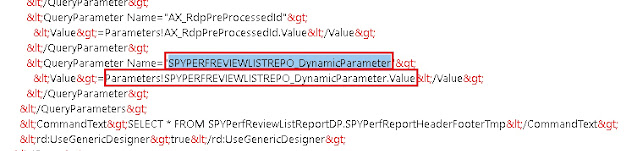
If we observe the design of the report we can notice that the parameter "SPYPERFREVIEWLISTREPO_DynamicParameter" which is reported missing does not exist on the design. Which means that the design did not sync with the XML and this parameter is still being referred with an incorrect parameter name. 


To fix this error we open the report in XML layout and replace the parameter name with "SPYPERFREVIEWDETAILSR_DynamicParameter" in this case as this is the actual name of the parameter. 


Report deployment error "Sequence contains no matching element"

 Sometimes when we change the source query of the datasets and redeploy the report we can get the error "Sequence contains no matching element"

It turned out that during the dataset restore a parameter was added. It was added at the Parameters node at the report level and the node Parameters, however if one of the parameters is deleted then this error will occur. 

So, this error occurs if a parameter name is being referred to at the dataset level and the same parameter does not exist at the report level. 

To resolve this error ensure that each parameter at the dataset level is mapped to a parameter at the report level. Also use dynamic parameters only for one dataset and not for multiple.

If the error still exists then try to recollect the parameters that you have lately modified and check if a reference for them still exists in the XML file and try to manually resolve them and map them to the newly updated parameters. Search QueryParameter in the XML and check the parameters individually for each dataset and report to identify any incorrect value and accordingly correct or remove the value from XML.

Sometimes this error can also occur is a report was deployed with Dynamic Parameter and then was changed to have Dynamic Parameter to false. In such cases make sure that you enable the dynamic parameter for the first dataset and then try to deploy again. 


SSRS Report Errors

 There are situations when runtime errors are generated by report datasets. Viewing these errors provides us information on how to debug the error.


The log for the same can be found under windows event viewer at the location Application and Services Logs ->  Microsoft -> Dynamics -> 


Each of the above nodes can be checked for the potential error. Click on the details node to get the details of the error 


Thursday, December 16, 2021

SSRS New Report creation

The report development is based on the MVC framework pattern. As part of this framewoek there are 2 main classes required for report development. Firstly, the contract class to store the necessary data for report generation. Secondly, we need the data provider class that is used to encapsulate the business logic to process for generation of the report. 

Following are the steps and necessary constructs/ data attributes required to create a report from the scratch

  1. Start by creating a contract class which would have the necessary fields to capture data on the report request stage. These data fields are then later used in the DataProvider class to filter our the required data. 
       

[DataContractAttribute]

class SPYSalaryHistoryContract implements SysOperationValidatable
{
    FromDate    fromDate;
    ToDate      toDate;

    [DataMemberAttribute("FromDate"),
    SysOperationLabelAttribute(literalStr(@SPY1278)),
    SysOperationHelpTextAttribute(literalStr(@SPY1278))]
    public FromDate parmFromDate(FromDate _fromDate = fromDate)
    {
        fromDate = _fromDate;
        return fromDate;
    }

    [DataMemberAttribute("ToDate"),
    SysOperationLabelAttribute(literalStr(@SPY1279)),
    SysOperationHelpTextAttribute(literalStr(@SPY1279))]
    public FromDate parmToDate(FromDate _toDate = toDate)
    {
        toDate = _toDate;
        return toDate;
    }

    public boolean validate()
    {
        boolean ret = true;

        if(fromDate > toDate)
            ret = checkFailed('@SPY:DateValidationMsg');
    
        return ret;
    }

}	
2. Create the DataProvider class. 

The data provider class should extend from the SrsReportDataProviderPreProcess method. When extended from this class the data provider will provide the necessary structure to populate the data table before the report is triggered. 

[
    SRSReportParameterAttribute(classStr(SPYSalaryHistoryContract)),
    SRSReportQueryAttribute(queryStr(HcmWorkerLookup))
]

class SPYSalaryHistoryDP extends SrsReportDataProviderPreProcess
{
    SPYPromotionSalaryTableTmp    promotionSalaryTableTmp;

    [SRSReportDataSetAttribute(tableStr(SPYPromotionSalaryTableTmp))]
    public SPYPromotionSalaryTableTmp getSPYPromotionDetailsTmp()
    {
        select promotionSalaryTableTmp;
        return promotionSalaryTableTmp;
    }

    public void setTableConnections()
    {
        promotionSalaryTableTmp.setConnection(this.parmUserConnection());
    }

    public void processReport()
    {
        Query                   query;
        QueryRun                queryRun;
        FromDate                fromDate, toDate;

        SPYSalaryHistoryContract    contract = this.parmDataContract() as SPYSalaryHistoryContract;

        fromDate = contract.parmFromDate();
        toDate =   contract.parmToDate();

        
        query = this.parmQuery();
        queryRun = new QueryRun(query);

        while(queryRun.next())
        {
        }

    }

} 
Once the above constructs are created a new SSRS report can be created. To start the designing we will have to begin by adding DataSource which should be  Report Data Provider. When can then specify a Query to link the DataSource to a table in the DP class. 

Two important attributes are used in RDP classes are:
  1. SRSReportParameterAttribute:  defines the data contract class that will be used by this report to prompt for parameter values. If the RDP class contains any parameters this define this attribute at the beginning of the class.
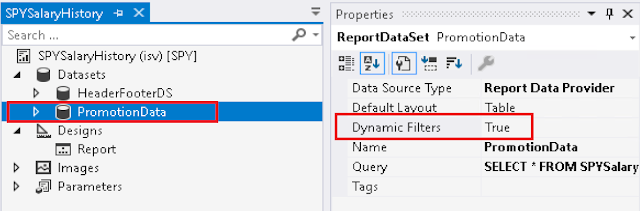
  2. SRSReportQueryAttribute:  specifies which AOT query will be used in this report. If the RDP class uses an AOT query to process data, define this attribute at the beginning of the class. However, for this attribute to work the Dynamic Filter should be set to true on the DataSet node of the report as shown below

Thursday, April 01, 2021

XDS Security

The extended security model is used to create a customer rule for limiting the access to records. In simple words, XDS is placing a Where clause on any SQL Select, Update, Delete, or Insert statement based on parameters from another related table. 

Scenario: Users are clubbed in a group and this group is then associated with a Sales Order. A user should only be allowed to view the sales orders which belong to a group where the users is associated.   

The different components of the XDS security are : 

1. Query: Query created for a table which is then extended to all the related tables where this table is a foreign key. 

For the above scenarios because we need to filter the Sales Order, so we will find a table where the Sales Order has a relationship. Eg: ( CommissionSalesGroup ) however the sales commission group does not have users associated to it, so we create a new table ( AFZCommissionSalesGroupUsers ). Now the query that we will create will be based on the table which has a direct link the sales order (CommissionSalesGroup ) and we will restrict this based on a join with the (AFZCommissionSalesGroupUsers) where the user= curUserID()

Next step is to add a security policy object.

2. Security policy: Once the query is designed, the next step is to plan which all table would this query restrict access to. A policy is used to link the query (created in step 1) with a list of tables which need to be restricted for security (constraint tables). 

It also has a policy context which is used to determine when the policy is applied, this is generally set to a security role (i.e. anyone which the configured role would be applied with the record level security). 

The security policy also has a primary table mentioned which is the root of the query that is created. The primary table should have an explicit relationship with all the tables where the constraint is being applied. 

Every security policy would also have a property called Constrained Table which can be set to Yes or No to decide if the policy would be applied on the primary table itself or not. 

When the policy is applied on the primary table it be already applied before the xds method is called in MyTables. If the xds method needs access to the records in the primary table, this might be a concern as the policy would already be applied and not all the rows in the primary table would be available for the xds method. In cases like this a view based on the primary table can be created and that should be used instead of the actual table. 

Alternatively within the XDS method if the xds needs to be by-passed the below constructs can be used

in AX2012 use 

       
XDSServices.setXDSState(0)
 

in Dynamics F&O you can use the below code block 

       
unchecked(Uncheck::XDS)
{
    select ValidTimeState(_asOfDate) maxof(ValidTo) from hcmEmployment
        where hcmEmployment.Worker == _workerRecId;
}
 
Ensure that you set the Constrained Table property to Yes and add the primary table is set to the primary table of the Query that is attached. 
 

3. MyTables : These are special tables created to be used in the security query, where custom logic can be written to populate data. These table names are prefixed with "My" keyword and the logic is written in xds function.


    public RefreshFrequency xds()
    {
        MyAFZCategory   myCategory;
        SPYHCMWorker       hcmWorker; //view is used as the primary table is contrained
        DirPersonUser   dirPersonUser;

        AFZEmployeeCategory afzEmployeeCategory;
        AFZWorkerCategoryUserAccess workerCategoryUserAccess;        
       
        insert_recordset myCategory(HcmWorkerRecId)
        select RecID from hcmWorker
        join afzEmployeeCategory
            where afzEmployeeCategory.Code == hcmWorker.AFZCategoryCode
        join workerCategoryUserAccess
            where workerCategoryUserAccess.UserId == curUserId()
            && afzEmployeeCategory.CodeGroup == workerCategoryUserAccess.CodeGroup ;             

        /*
        select generateOnly forceLiterals RecID from hcmWorker
        join afzEmployeeCategory
            where afzEmployeeCategory.Code == hcmWorker.AFZCategoryCode
        join workerCategoryUserAccess
            where workerCategoryUserAccess.UserId == curUserId()
            && afzEmployeeCategory.CodeGroup == workerCategoryUserAccess.CodeGroup ;
        info( hcmWorker.getSQLStatement() );
        */


        //Calculate current worker value
        select firstonly PersonParty, ValidFrom, ValidTo from dirPersonUser
            where dirPersonUser.User == curUserId();

        select firstonly RecId from hcmWorker
            where hcmWorker.Person == dirPersonUser.PersonParty;

        myCategory.initValue();
        myCategory.HcmWorkerRecId = hcmWorker.RecId;
        myCategory.insert();

        // This is static data, so only refresh when session is restarted
        return RefreshFrequency::PerSession;
    }

}

When a table is being added to the constraint table. There are two options:
  • Constraint Table : Allows us to select tables from which the data would be filtered. These tables should have a relationship defined with the primary table of the xds query. 
  • Constraint Expressions: Allows us to select tables and define a realtionship of our own. 

In the example below a InventTable is being added to the constraint tables with an explicit relationship (InventTable.ItemID == InventItemPurchSetup.ItemID)


The XDS security policies are saved in the database and hence its important to have the project "Synchronize Database on build" turned on when changes are being done to the security policy. The table where the security filters are saved is ModelSecPolRuntimeEx. This table also stores a  
       
select QUERYOBJECTAOTNAME, CONSTRAINEDTABLE, MODELEDQUERYDEBUGINFO , MODELEDQUERYPACKDATA
from ModelSecPolRuntimeEx 
where [Name] like 'AFZ_NonStoppedItemPolicy'
 
Some times the containers in the database might not get updated and you might get an error as below when the security is applied. 


This only indicates that the Query is not updated in the database. To update the required data in the database against a XDS query execute the below code in a job class. 


Saturday, September 21, 2019

Merge Queries

Had a requirement where two Queries created using the dynamics query framework classes, had to be merged together. My business case was as follows.

Business Case: Required to create a report which would be run for a selected no of employees (query1). Within this selected set of employee certain data was required for a further finer selection of employees ( query2). The query2 was a subset of employee like managers and part time employees with the selected query1.

It was required that the Query2 is appended to the original Query1 and the filters are copied so that the results can be achieved.

if ( filterQuery != null )
{
    //start by looping for all the datasources in the source query and find the common datasource in target query
    //if a common datasource is found, then merge the ranges. If not found try to find the parent if a common parent
    //is found then add the datasource below the right parent and merge the ranges         

    for (int ctr = 1; ctr <= filterQuery.dataSourceCount(); ctr ++)
    {
//check if a common datasource/table exists between the two queries
qdbCurrentSource = filterQuery.dataSourceNo(ctr);
qdbCommon = finalQuery.dataSourceTable(qdbCurrentSource.table());

if (!qdbCommon) //if a common table is not found then look for a parent
{
    parentTable = qdbCurrentSource.parentDataSource().file();

    if (parentTable)
    {
qdbCommonParent = finalQuery.dataSourceTable(parentTable);
if (qdbCommonParent) //if the parent is found then add the current datasource to the common parent
{
    qdbCommon = qdbCommonParent.addDataSource(qdbCurrentSource.table());
    qdbCommon.fetchMode(QueryFetchMode::One2One); //IMPORTANT without this the query can get seperated
 
    for( int intLinkCtr=1; intLinkCtr<= filterQuery.dataSourceNo(ctr).linkCount(); intLinkCtr ++)
    {
link = filterQuery.dataSourceNo(ctr).link(intLinkCtr) ;
if ( link.relatedField() == 0)
{
    qdbCommon.relations(true); //this only works between the parent and current datasource
}
else
{
    qdbCommon.joinMode( filterQuery.dataSourceNo(ctr).joinMode() );
    qdbCommon.addLink( link.field(), link.relatedField() );
}
    } //link counter

    SysQuery::mergeRanges(finalQuery, filterQuery, ctr, false, true);
    SysQuery::mergeFilters( filterQuery, finalQuery,ctr,true,false);
} //common parent
    }
 
    if (!qdbCommon)
    {
qdbCommon = finalQuery.addDataSource(filterQuery.dataSourceNo(ctr).table());                     
qdbCommon.relations(true);
    }
 
}
else
{
    SysQuery::mergeRanges(finalQuery, filterQuery, ctr, false, true);
    SysQuery::mergeFilters( filterQuery, finalQuery,ctr,true,false);
}
    }

    SysQuery::copyDynalinks(finalQuery,filterQuery);
} //filterQuery is null